Faculty and Staff Online Campus Storage Mac
Philadelphia University provides faculty and staff with online storage access. This storage is available from any network computer on campus as well as through VPN off campus. (Click here for a VPN Setup Walkthrough) Please click on the appropriate link to learn how to set up storage access on an Apple computer.
Please click on the appropriate storage service you would like to set up on your computer
Juno (Personal Storage or Home Directory)
Lightning (Public Storage)
Juno (Home Director) Setup on Apple/Mac Computers
Juno is a personal virtual storage for Faculty and Staff at PhilaU. This can be accessed on any computer on campus as well as off. Below are directions on how to access Juno from a Mac computer. Please make sure you are connected with VPN and netextender when off campus.
DIRECTIONS
1. Connect your computer to VPN using Netextender. Please visit our VPN page for directions on how to do so.
2. Click on the "Finder" icon at the bottom dock of your computer. It is the icon that looks like a blue smilely face. It is normally all the way to the left.
3. Click on the "Go" menu at the top of the screen and choose "Connect to Server"
4. Type in "smb://Juno/home/YourUsername" in the "Server Address:" field at the top. Replace "YourUsername" with your normal Webadvisor or Blackboard log in.
5. Press "Connect"
6. Your Juno folder should appear in a new window.
Lightning Setup on Apple/Mac Computers
Lightning is the shared academic folder server for Philadelphia University. Folders and files are stored on this server and can be accessed by fellow students, faculty and staff.
Click here for a downloadable PDF with instructions on how to set up Lightning on Mac and PC
DIRECTIONS
1. Log-on to the computer, and connect to the Philadelphia University network. This can be accomplished through an Ethernet or wireless connection on-campus, or by using a VPN connection from off campus.
2. At the Mac desktop, choose "Connect to Server" from the "Go" pull-down menu.
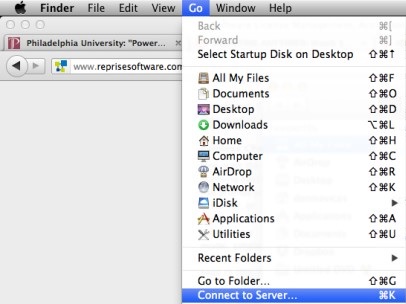
3. Choose the Lightning server, or type the server name (which can be expressed as smb://Lightning/courses) in the address bar. Click "Connect".
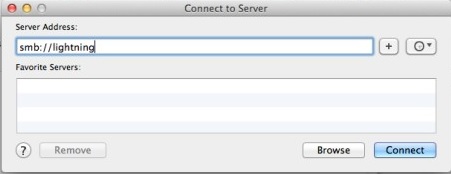
4. Type in the user's username and password where appropriate. If necessary, express username as "Student\YourUserName" for students, or "Philacol\YourUserName" for faculty and staff.
5. If the computer prompts the user to choose a volume to mount, choose the appropriate one and click OK. For example: academic file folders can be found in the Apps folder, so choose Apps as the folder to mount.
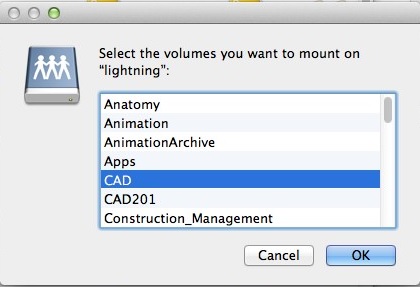
6. The icon should appear on the user's desktop. Find the folder needed and open it. The user should now have access to files on Lightning.
7. To create an alias (shortcut) to a particular subfolder, hold down the "Apple" and "Option" keys and drag the icon onto the desktop. If a message appears stating that it cannot find the server, the user may not be connected to the network.
If connected, try deleting the shortcut and re-creating it, replacing smb://lightning/courses with smb://lightning.facstaff.philau.edu/courses
NOTE FOR OFF-CAMPUS ACCESS: Users will need to install and run VPN to get to Lightning. If so, please choose the appropriate VPN Instructions in the Guides Lists Here.
Connect to Artemis on a MAC
1. Log on using your PhilaU network username and password. Click "Log in." (If off campus please connect to VPN before continuing. Click here for instructions.)
2. Verify the "Finder" application is selected by checking the top-left corner of the screen, for the "Finder" menu. Otherwise, click the "Finder" button from the applications bar in the bottom portion of the screen.
3. Click the "Go" menu and then select "Connect to Server."
4. Without quotes, type "smb://artemis.facstaff.philau.edu/FOLDERNAME" in the server address bar. Click the "Connect" button. You will need to type in the FOLDERNAME of the folder you would like to connect to or it will not work.
5. Enter your PhilaU network username and password. Click the "Connect" button.
6. Select the department share in the list. Click the "OK" button.
7. Simultaneously, press the "Apple" key and the "alt" key while dragging the appropriate folder to the desktop to make a shortcut of the folder.
8. Double-click the desktop shortcut to access Artemis.
NOTE: If an "Access Denied" error message is encountered while following these steps, this means that have not been given network permissions to access this specific folder on Artemis. Please contact the help desk to request access to folder, please include the name of the departmental folder in your request.
Support
For further assistance, please contact the Technology Help Desk at 215-951-4648 or by Email at HelpDesk@PhilaU.edu